


It usually starts with an email on a Monday morning. "Some of your ads aren't running due to policy violations." You log in and half the ads in your best campaign say "Disapproved." Leads slow down by lunch. Nobody changed anything over the weekend.
Ad disapprovals are one of the most frustrating parts of running Google Ads, mostly because they feel random. Some are legitimate. Some are triggered by a word that means something completely different in your industry. Some happen because your website hiccupped for 30 seconds while Google's crawler happened to be visiting.
We manage Google Ads for service businesses, manufacturers, ecommerce brands, healthcare providers, and law firms, so we see a wide range of policy issues. This guide covers every major disapproval category we run into in Search and Performance Max campaigns: what triggers each one, why the system sometimes gets it wrong, and exactly how to fix it or appeal it.
If your issue is with Shopping product disapprovals in Merchant Center, that's a separate system with its own rules. We covered it in our guide to common Google Merchant Center rejections.
How Google's ad review actually works
Every ad, asset, and landing page in your account gets reviewed against Google's advertising policies. That review happens when you create something new, when you edit something, and periodically after that, since Google re-crawls landing pages on its own schedule.
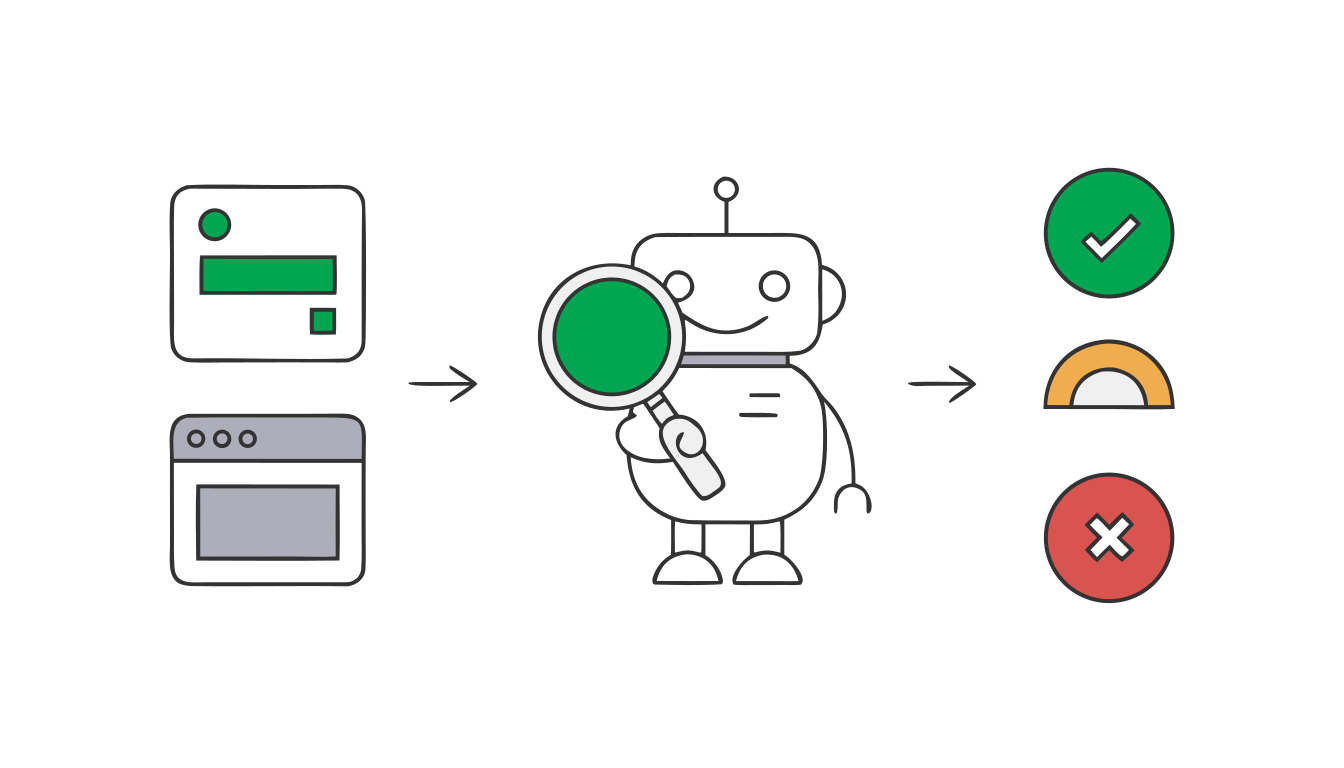
Most of the review is automated. Machine learning classifiers read your ad text, scan your images and videos, and crawl your landing page. Google says most reviews finish within one business day, though more complex ones take longer. Human reviewers get involved mainly on appeals, sensitive categories, and escalations.
That automation is why disapprovals can feel arbitrary. A classifier sees the word "injection" and doesn't know you're a plastic injection molding company. It crawls your page during a server timeout and decides the destination doesn't work. It reads "Detroit's #1 roofer" and flags an unverifiable claim.
The statuses you'll see
Disapproved means the ad or asset can't serve anywhere until the issue is fixed or the decision is reversed.
Eligible (limited) means the ad can run, but only in some places. The limit might be by country, device, age of the viewer, or whether you've been certified for a regulated category. Google's documentation notes this label can apply even if your products are compliant, simply because your website contains terms associated with regulated industries.
Approved (limited) is the Performance Max version of the same idea, applied at the asset group level. Your asset group runs, but some assets are restricted, which can keep it off certain networks.
Under review means exactly that. If something has been stuck here for more than two business days, it's worth contacting support.
Disapprovals vs. account suspensions vs. limited serving
These are three different problems, and mixing them up leads to bad decisions.
A disapproval affects a specific ad, asset, or destination. The rest of your account keeps running.
An account suspension shuts down everything. For many policies, Google issues a warning first, then a strike system: no strike for the first violation, a three-day account hold for the first strike, a seven-day hold for the second, and suspension on the third. Some policies, like circumventing systems or unacceptable business practices, can lead to suspension without that runway. Editorial violations specifically won't trigger an immediate suspension; Google commits to a warning at least seven days ahead.
Limited ad serving is newer and quieter. Google limits impressions for advertisers it considers "unqualified" in certain scenarios, based on factors like account age, policy history, user reports, and whether you've completed advertiser verification. Your ads aren't disapproved. They just show less. In August 2026, Google expanded this policy to cover all Google Ads, with a gradual rollout through 2028. If a newer account's impressions seem oddly capped with no disapprovals in sight, this may be why.
How disapprovals differ in Search vs. Performance Max
The policies are the same. How they show up is different.
In Search campaigns, policy issues hit at the ad level or the asset level. A responsive search ad can have one headline disapproved and keep serving with the other headlines. A sitelink can be disapproved while the ad runs fine. That's forgiving, but it also means a disapproved headline can sit there for months without anyone noticing, quietly reducing the combinations your ad can show.
In Performance Max, each asset is reviewed individually: every headline, description, image, logo, and video. A problem with one image might restrict the whole asset group from serving on Display or YouTube while it keeps running on Search. To see what's going on, open the asset group, click View Details, and check the Status column for each asset.
PMax also adds a few disapproval sources that don't exist in standard Search.
Google-generated assets. If you've allowed automatically created assets or text customization, Google writes some of your copy and generates some imagery. Those assets can get disapproved too. It's an odd experience to have Google's AI write a headline and then have Google's policy system reject it, but it happens. Text guidelines (available globally since February 2026 for AI Max and PMax) let you set up to 25 term exclusions and 40 messaging restrictions, which helps keep generated copy out of trouble.
Final URL expansion. If it's turned on, PMax and AI Max can send traffic to pages you didn't choose. If one of those pages has a policy problem (an old promo page, a blog post that mentions a prescription drug, a page with a broken form), you can end up with destination issues on a page you never meant to advertise. Exclude those URLs.
Merchant Center products. For ecommerce PMax campaigns, product disapprovals in Merchant Center pull those products out of Shopping inventory even if your PMax assets are clean.
The major disapproval categories (and how to fix each one)
Google has around 30 policy areas. Most disapprovals we see fall into the ten categories below.
1. Editorial
Editorial policies cover how your ad is written and presented. They're the most common disapprovals in Search accounts and also the easiest to fix.
What triggers it:
Capitalization used for emphasis, like "FREE Estimates" or "BEST Prices." Repeated or gimmicky punctuation, like "Call Now!!" or "F.R.E.E." Symbols used in place of letters or words. Emoji. Extra or missing spaces. A phone number typed into ad text instead of using a call asset. Spelling and grammar errors. Repetition, which now includes repeating the same words or phrases across different assets in the same ad group, campaign, or account. Ads or landing pages that don't clearly name the business or product (Google calls this "unidentified business"). A business name field that contains anything other than your domain, your recognized brand name, or your app name.
For PMax, editorial also covers image quality (blurry, sideways, cropped, or illegible images) and video quality (poor sound, unreadable text, blurry footage).
Common false flags:
Brand names with unusual styling. "HVAC," "ADA," and acronyms in company names get flagged as excessive capitalization. Product names that use symbols, like a brand that legitimately uses "+" or "&" in its name. Business names where the legal name and the domain don't match.
Google's own policy allows trademarks and brand names that use non-standard punctuation or capitalization, as long as they appear the same way on your landing page. You have to request a review to use them.
The business name issue got a meaningful update in October 2026. Google now allows the business name and destination domain to differ in limited cases: when the name accurately reflects your recognized brand, there's a verified direct relationship between you and the domain owner, and your products or services are directly offered on that domain. Resellers, affiliates, and booking intermediaries don't qualify.
How to fix it: Edit the asset. Rewrite in sentence case or title case, remove the extra punctuation, and move phone numbers to a call asset. Saving the edit automatically sends it back for review, which usually takes 24 to 48 hours. If it's a legitimate brand styling, make sure your landing page uses the same styling, then appeal with "Dispute decision" and explain that it's your brand name.
2. Destination requirements
This is the category that causes the most panic, because it can take down every ad pointing to a landing page at once. It's also the category with the most false flags.
What triggers it:
Destination not working: the page returns a 404 or a server error, times out, or doesn't load on certain devices or in certain regions. Destination mismatch: the domain in your display URL doesn't match where the user actually lands, often because of a redirect to a different domain. Destination not crawlable: Google's crawler can't access the page, usually because of robots.txt rules, a firewall, or bot protection. Insufficient original content: the page is under construction, mostly empty, or mostly copied from elsewhere. Mobile issues: the page breaks on phones. App or download destinations that don't behave as promised.
Common false flags:
This is where we see the most wrongful disapprovals, and almost all of them come down to the crawler having a bad experience that a human visitor never would.
Temporary outages are the big one. If your server goes down for a few minutes, or your hosting provider has a slow afternoon, and Google's crawler visits during that window, it records a failure. The site is fine an hour later, but the disapproval stays until something triggers a recrawl.
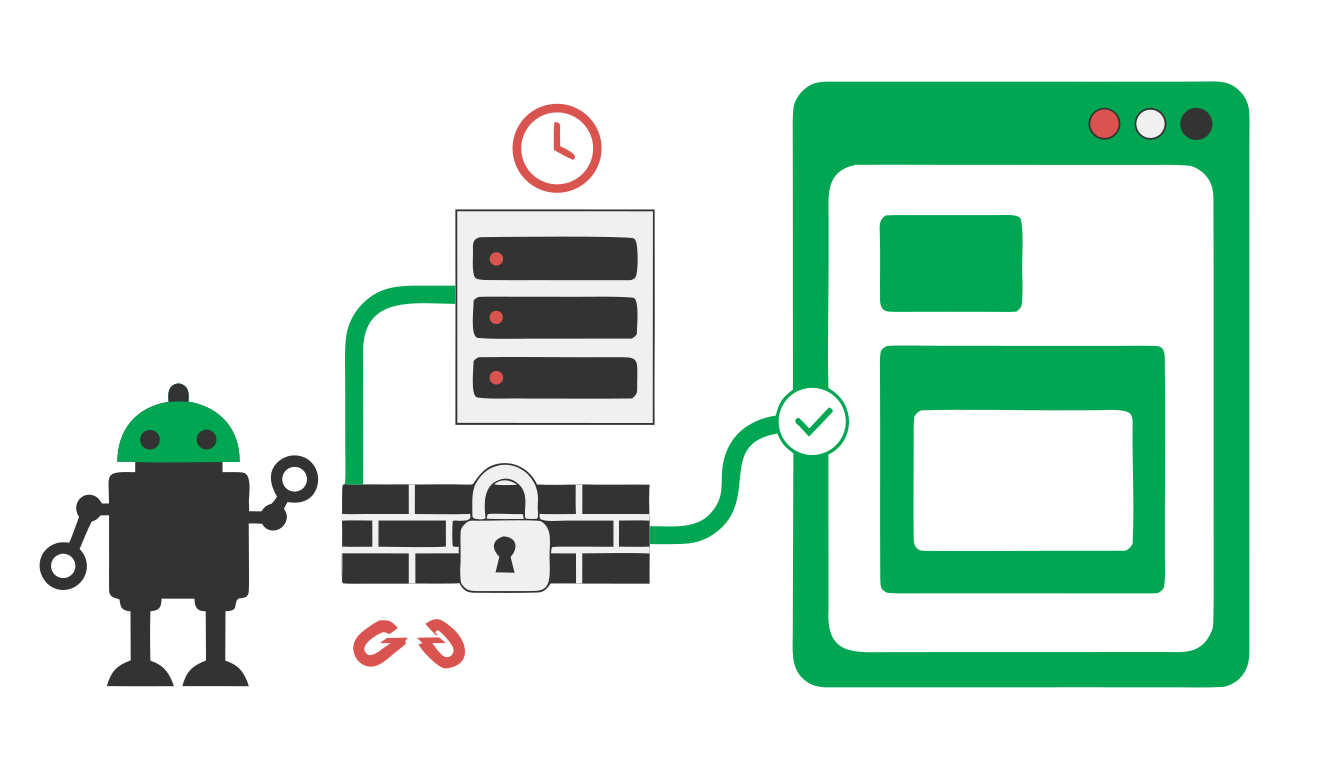
Security tools are the second. Cloudflare bot fight mode, WordPress security plugins, rate limiters, and web application firewalls sometimes block Google's ad crawler (AdsBot-Google) because it looks like automated traffic. Which it is. Geo-blocking does the same if your site restricts traffic from outside the US and the crawler hits it from somewhere else.
Tracking redirects are the third. A tracking template or a link shortener that bounces through a third-party domain can trigger a destination mismatch even though the user ends up in the right place.
Google did loosen the redirect rule a bit in June 2026. Redirects to a different domain are now allowed in certain cases with prior approval. Google's example is a consumer packaged goods brand sending users to a pre-approved list of retailers that carry the product.
How to fix it:
Load the exact final URL from the ad on desktop and mobile, in a private window, from a network outside your office. Check that it loads fast and doesn't redirect anywhere unexpected.
Check your robots.txt file and make sure it doesn't block AdsBot-Google. Note that AdsBot ignores the wildcard (*) user agent, so it has to be named specifically to be blocked, but plenty of sites do exactly that by accident.
Ask your developer or hosting provider to allowlist Google's crawlers in your firewall, CDN, and security plugins.
Remove unnecessary redirects. If you use a tracking template, make sure it resolves to the same domain as your final URL.
Then appeal with "Made changes to comply with policy." If the page was never actually broken (the outage was temporary), choose "Dispute decision." Google's own documentation suggests that if an appeal fails or gets marked as a duplicate, you should make a small edit to the ad text or final URL and save it, which forces a fresh crawl.
If you want to go further on landing page health, our post on why your landing page is the cheapest lever you have covers what to look at.
3. Misrepresentation
Misrepresentation is the category we take most seriously, because repeated or severe violations can lead to account suspension, sometimes without much warning.
What triggers it:
Unreliable or unsubstantiated claims: "guaranteed results," "#1 rated," "lowest price in Michigan," "cure," or anything you can't prove. Dishonest pricing: an ad price that doesn't match the landing page, or fees that only appear at checkout. Missing business information: no physical address, no phone number, no about page, no privacy policy, no clear way to contact a real business. Clickbait or sensational copy. Misleading ad design, like ads that look like system warnings or fake buttons. Implying an affiliation with a government agency or another brand you're not affiliated with. Offers that aren't actually available.
Common false flags:
New domains and thin landing pages. A brand-new site with a single landing page, no about page, and a form is exactly what scammers build, so the classifier is suspicious of it. Lead gen landing pages that strip out navigation for conversion reasons can look like they're hiding the business behind them.
Superlatives that are true. If you really were voted best plumber in Macomb County by a local publication, the classifier doesn't know that.
How to fix it:
Make your landing page look like a real, accountable business. Include your business name, physical address, phone number, and a link to your privacy policy, at minimum in the footer. Add an about page if you don't have one. Remove or qualify claims you can't prove, or cite the source right on the page (something like "Voted Best Plumber, [publication name] Readers' Choice 2026"). Make sure any price in the ad matches the landing page exactly.
Complete advertiser verification if you haven't. It's increasingly tied to how much trust Google extends to an account. And a word of caution here: in 2026 Google clarified that submitting false information during verification counts as circumventing systems, which is a suspension-level violation.
4. Trademarks
What triggers it: Using a trademarked term in your ad text when the trademark owner has filed a complaint with Google. Note that this only applies to ad text. In most regions, Google does not restrict bidding on trademarked terms as keywords.
Common false flags: Your own brand. If your business name overlaps with a registered trademark, or you're an authorized dealer of a brand that has filed a blanket complaint, your ads can get flagged. Common words that also happen to be trademarks get caught too.
How to fix it: If you're an authorized reseller or dealer, the trademark owner can authorize your account through Google's trademark authorization process. You have to ask them to submit it. If you're using the term in an informational or reseller context that Google's policy allows, appeal and explain. If you're using a competitor's trademark in your ad text to poach their traffic, remove it. That one won't win on appeal.
5. Healthcare and medicines
What triggers it: Prescription drug names in ads or on landing pages. Addiction treatment services, which in the US require certification through LegitScript before they can advertise. Speculative or experimental treatments. Unapproved supplements or substances. Online pharmacies without certification. Google updated this policy twice in 2026 (April and July), so if you work in healthcare, review the current version rather than relying on how it worked last year.
Common false flags: This is the category with the funniest false flags, though they're not funny when it's your account.
We've seen manufacturing clients get hit more than once. "Injection molding" trips medical classifiers. So does "precision dosing equipment." A juice bar's "detox cleanse" can get flagged. A blog post on your site that mentions a prescription drug by name can create a restriction on ads pointing elsewhere on the same domain.
How to fix it: If you're in a regulated healthcare category, apply for the required certification before launching. For addiction treatment, that's LegitScript in the US. For pharmacies, it's Google's online pharmacy certification. If you're not in healthcare at all and the classifier misread an industry term, appeal with "Dispute decision" and explain plainly what your business does. Adding clear context on the landing page (for example, "industrial plastic injection molding for automotive suppliers") helps the human reviewer see the mistake quickly.
6. Financial products and services
What triggers it: Advertising loans, credit, insurance, investments, debt services, or crypto without the required disclosures or verification. In many countries, Google requires financial services verification before you can advertise at all. Required landing page disclosures commonly include fees, APR ranges, repayment terms, and a physical address. Google rolled out new verification requirements for certain financial services advertisers in April and June 2026 and updated the broader policy again in October.
Common false flags: The word "loan" or "credit" used in a non-lending context. "Financing available" on a home improvement ad. "We accept all major credit cards." "Tax season" content from a bookkeeping firm.
How to fix it: If you actually offer financial products, complete financial services verification for every country you target and add the required disclosures to your landing page. If you're a contractor offering third-party financing, keep the ad focused on your service and send people to a page that clearly names the lending partner and links to their terms. If the classifier simply misread a word, appeal.
7. Dangerous products and inappropriate content
What triggers it: Weapons, ammunition, explosives, fireworks, recreational drugs, tobacco and vaping products. Violent, shocking, or hateful content. Sexual content.
Common false flags: Industry words that sound dangerous. "Sandblasting" and "media blasting" for surface prep companies. "Shooting" for photographers and videographers. "Kills 99% of bed bugs" for pest control. "Fire damage restoration." "Explosive growth" in a B2B ad. "Killer deals."
How to fix it: For genuine false flags, appeal with an explanation. For ad copy, it's often faster to rephrase ("eliminates bed bugs," "abrasive blasting and surface preparation") than to wait on an appeal, especially in a high-volume campaign.
8. Restricted businesses and legal requirements
What triggers it: Some business types are restricted in general, not because of anything in the ad. These include locksmiths, consumer tech support, bail bonds, government document services, gambling, alcohol (in certain markets), and others. Many require advance verification or certification. Separately, ads have to comply with local laws in every location they target.
Common false flags: Businesses that are adjacent to a restricted category. A security system installer may get treated like a locksmith. A managed IT services company may get treated like consumer tech support.
How to fix it: If you're in a restricted category, complete the required verification before you launch. If you're adjacent to one, make the distinction obvious in your ad copy and landing page, then appeal.
9. Personalized advertising (restricted targeting)
What triggers it: Using audience targeting (remarketing, Customer Match, custom segments) with ads related to sensitive categories, like health conditions, financial hardship, or personal struggles. In the US and Canada, housing, employment, and credit ads can't be targeted by age, gender, parental status, marital status, or ZIP code. These usually show up as "Eligible (limited)," with the ad running without personalized targeting, but they can also be outright disapprovals.
Common false flags: Addiction treatment, mental health, and senior care clients often find their remarketing audiences quietly stop working. That's typically the policy doing what it's supposed to do rather than a false flag, but advertisers don't always realize what happened.
How to fix it: Remove the restricted audience targeting from campaigns in sensitive categories, or move those audiences to observation only. For housing, employment, and credit, remove demographic and ZIP targeting. We wrote about how to use GA4 audiences to reduce wasted spend; just keep the sensitive category rules in mind before applying audiences to regulated campaigns.
10. Account-level policies: circumventing systems and unacceptable business practices
These aren't ad disapprovals in the usual sense. They're account-level violations, and they're the ones that lead straight to suspension.
What triggers it: Trying to get around the review system (cloaking, changing landing page content after approval, creating new accounts after a suspension). Providing false information during advertiser verification. Running ads tied to scams, misleading business models, or concealed identity.
Common false flags: Sharing a payment method, domain, or login with a previously suspended account. Agencies inheriting client accounts that have history they don't know about. A former vendor's suspended account using the same credit card.
How to fix it: These go through the suspension appeal process, not the standard ad appeal process. Prepare documentation: proof of business registration, your relationship to the domain, and an explanation of any connection to previously suspended accounts. Be specific and honest. These reviews are slow and you usually get limited chances.

Why false flags happen
Once you've seen enough wrongful disapprovals, the patterns get predictable.
Words read out of context. Classifiers flag terms, not meanings. "Injection," "shot," "blast," "kill," "loan," and "detox" all have harmless meanings in many industries.
Your site, not your ad. Google evaluates the whole destination, and sometimes the whole domain. A blog post from 2019 mentioning a prescription drug, or an old promo page with an expired offer, can cause restrictions on ads pointing elsewhere. Google's documentation explicitly says ads can be limited when your website contains terms associated with regulated industries, even when your products are compliant.
The crawler's bad day. Server timeouts, firewalls, geo-blocking, and bot protection all cause destination failures that real visitors never see.
Account history. New accounts, accounts with past violations, and accounts that share payment methods or domains with suspended accounts get less benefit of the doubt.
AI-generated assets. Google's own generated headlines and images can fail Google's own policy review, especially when they pull language from your website that wasn't written with ad policies in mind.
Policy changes. Google's policy change log listed more than 65 updates in 2026 by October. An ad that was fine last spring may not be fine now.
How to fix and appeal any disapproval: the process
Here's the process we follow regardless of category.
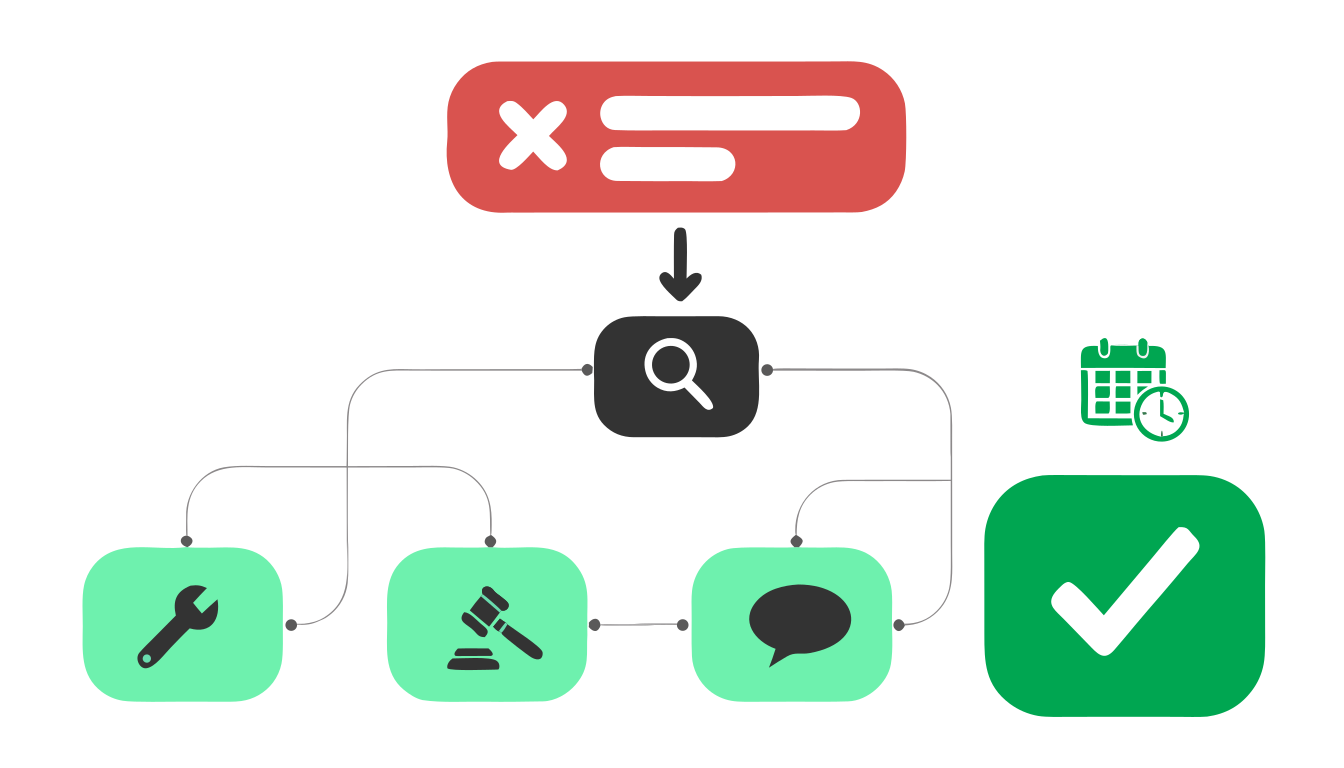
Step 1: Find the exact policy. Hover over the "Disapproved" status in your Ads or Assets view and click through to the policy. Better yet, add the "Policy details" column to your Ads and Assets tables so you can see every issue at once. Or go to Tools, then Troubleshooting, then Policy manager, which lists every active policy issue in the account.
Step 2: Decide whether it's real. Read the policy. Look at your ad and landing page as if you were the reviewer. Be honest about it. Most of the disapprovals we see are real but minor (editorial issues, missing landing page info). A smaller share are genuine false flags.
Step 3: Fix what you can. Edit the ad or asset. Fix the landing page. Remove the restricted term. For PMax, replace the disapproved image or text asset rather than editing the whole asset group.
Step 4: Choose the right appeal type. Google gives you two options. "Made changes to comply with policy" is for when you fixed something. "Dispute decision" is for when you believe the original decision was wrong. Choose accurately. Disputing something you actually needed to fix just wastes one of your appeals.
Step 5: Respect the appeal limits. Each ad gets three appeals. After three unsuccessful attempts, you have to contact support to appeal that ad again. Wait at least 24 hours between appeals on the same ads, or they'll be marked as duplicates. Submitting too many unique appeals in a single 24-hour window can get further appeals paused. Google also notes that appealing everything in the account at once slows the review down, so appeal by campaign or ad group.
Step 6: Watch the six-month window. Starting July 21, 2026, you can no longer appeal policy decisions from inside Google Ads if the decision is more than six months old. For older disapprovals, you have to go through Google Ads support. If you've been ignoring a disapproved ad you plan to use again someday, deal with it now.
Step 7: Track it. The Appeal history tab in Policy manager shows the status and result of every appeal. "Partially successful" means some ads were cleared and others weren't, so check which ones are still restricted.
Step 8: Escalate when it makes sense. If an appeal fails and you're confident you're compliant, contact Google Ads support directly. Have the ad ID, the policy name, a screenshot of the landing page, and a short, clear explanation ready.
How to prevent disapprovals in the first place
Most disapprovals are preventable with a little setup.
Write ads to policy from the start. Use sentence case or title case, no repeated punctuation, no phone numbers in text, no claims you can't back up. Keep a short internal list of words that tend to get flagged in your industry and phrase around them.
Build landing pages like a legitimate business. Business name, address, phone number, privacy policy, and an about page, on every landing page. Prices that match your ads.
Allowlist Google's crawlers. Have your developer confirm that AdsBot-Google isn't being blocked by robots.txt, your firewall, your CDN, or your security plugins.
Monitor uptime. A free uptime monitor will alert you when your site goes down. If you know there was an outage, you know why the destination disapprovals showed up and can appeal immediately.
Complete advertiser verification early. It reduces friction across several policies and may affect limited ad serving.
Control automation. In PMax and AI Max, use text guidelines to exclude risky terms, review generated assets before they run, and exclude URLs you don't want final URL expansion to send traffic to.
Route policy emails to someone who reads them. We see accounts where disapproval notifications go to an inbox nobody checks. Make sure the account's notification settings send policy alerts to an active email.
Review policy status during every audit. Check Policy manager monthly, not just when something breaks. A disapproved headline or sitelink can sit unnoticed for months. Our no-nonsense Google Ads audit includes this step.
The bottom line
Disapprovals are part of running Google Ads. The system is automated, it reads words out of context, and it's changing constantly. Most issues are minor and fixable within a day or two. A smaller number are false flags that need a clear, well-documented appeal. And a few, mostly around misrepresentation and circumventing systems, need serious attention because they can put the whole account at risk.
The advertisers who handle this well don't do anything magic. They check Policy manager regularly, build landing pages that look like real businesses, keep their sites crawlable, and appeal with the right reason the first time.
If you're dealing with disapprovals you can't get resolved, or a suspension that's taking your lead flow down with it, our Google Ads management team handles these regularly. Schedule a consultation and we'll take a look. And if you're also trying to sort out how your keywords are matching in 2026, our guide to when to use exact, phrase, and broad match is a good next read.
