

You're spending $2,000 a month on Google Ads. Maybe more. Every month, like clockwork, that charge hits your credit card. But here's the question that keeps you up at night: Is it actually working?
You might be running the campaigns yourself, piecing together what you learned from YouTube tutorials and Google's help center. Or maybe you hired an agency or freelancer, and you're trusting they know what they're doing. Either way, you've got that nagging feeling in your gut that something's... off.
The clicks are there. The invoice is definitely there. But the results? That's where things get fuzzy.
Here's the good news: you don't need to be a Google Ads expert to figure out if your campaigns are healthy. You just need to know what to look for. Think of this as a health check for your advertising—and just like a regular checkup at the doctor, catching problems early can save you a lot of money and headaches down the road.
In this guide, we'll walk through exactly what to audit in your Google Ads account, what red flags to watch for, and how to fix the most common problems. Whether you're running your own campaigns or validating the work of someone you hired, you'll know exactly what "good" looks like by the end of this article.
No tech degree required. Promise.
Before You Start: What You'll Need To Run Your Audit
Let's make sure you have everything ready before we dive in.
Get Access to Your Account
First things first: you need to actually see inside your Google Ads account. If you're running your own campaigns, you're all set. But if you hired someone to manage your ads, you might not have access yet—and that's a problem.
You should always have admin access to your own Google Ads account. Period. Even if someone else is managing it day-to-day, it's your business, your money, and your data. Any reputable agency or freelancer will happily give you full access.
If they're hesitant or tell you it's "too complicated" for you to see, that's your first red flag. Request access immediately. You can find your account by going to ads.google.com and signing in with the Google account associated with your business.
Understand the Basic Metrics
You don't need to memorize a hundred different metrics, but these five are essential:
- Impressions: How many times your ad was shown. Think of this as eyeballs on your ad.
- Clicks: How many people actually clicked your ad. This tells you if your ad is compelling enough to get attention.
- Click-Through Rate (CTR): The percentage of people who saw your ad and clicked it. A good CTR varies by industry, but generally anything above 2% is decent, and above 5% is strong.
- Cost Per Click (CPC): How much you pay, on average, each time someone clicks. This varies wildly by industry—lawyers pay a lot more than plumbers, for example.
- Conversions: The money metric. This is when someone takes the action you want—fills out a form, makes a purchase, calls your business, whatever you've defined as success.
There's one more metric that matters most: Cost Per Conversion. This tells you how much you're spending to get each new lead or customer. If you're spending $200 to get a customer who only brings in $100 of profit, you've got a problem.
How Often Should You Audit?
- Quick Check: Monthly (15-20 minutes)
- Deep Dive: Quarterly (1-2 hours)
- Emergency Audit: Immediately, if you notice a sudden spike in spend, drop in conversions, or your gut tells you something's wrong
Now let's get into the actual audit.
Section 1: Campaign Structure & Organization Audit
Open up your Google Ads account and click on "Campaigns" in the left sidebar. What do you see?
A well-organized account is like a well-organized closet. Everything has its place, you can find what you need quickly, and it's easy to see what's working and what's not.
What Good Looks Like
Your campaigns should be organized logically, typically by:
- Product or service type
- Geographic location
- Business goal (leads vs. sales vs. awareness)
- Customer type (new vs. returning)
For example, a local plumber might have campaigns like:
- "Emergency Plumbing - Detroit"
- "Drain Cleaning - Detroit"
- "Water Heater - Detroit"
Each campaign has a clear purpose. You can immediately tell what it's advertising and who it's trying to reach.
Campaign names should make sense at a glance. "Campaign 1" tells you nothing. "Emergency Plumbing - Metro Detroit - Search" tells you everything.

Red Flags to Watch For
🚩 Everything lumped into one campaign. If all your products, services, and locations are mixed together in one campaign, you can't optimize effectively. It's like trying to steer a bus when you wanted to make a quick turn.
🚩 Dozens of paused campaigns. A graveyard of paused campaigns cluttering your account usually means a lot of failed experiments with no cleanup. This makes it hard to see what's actually running.
🚩 Confusing or generic names. If you can't tell what a campaign is advertising from its name, that's a problem.
🚩 Too many campaigns for your budget. If you're spending $1,000/month but running 15 different campaigns, you're spreading your budget too thin. Each campaign needs enough budget to gather meaningful data.
Why This Matters
Clean campaign structure isn't just about being neat. It directly impacts your ability to:
- See what's working and what's not
- Make smart budget decisions
- Optimize performance
- Scale what works
If your foundation is messy, everything else becomes harder.
Section 2: Keyword Performance
Keywords are the backbone of your Google Ads campaigns. They determine when your ads show up and who sees them. Let's make sure yours are pulling their weight.
Click on "Keywords" in the left menu to see your full keyword list.
What to Look For
Start by looking at the columns for Clicks, Conversions, and Cost. Sort by cost (highest to lowest) to see where your money is going.
Ask yourself:
- Which keywords are getting clicks?
- Which keywords are leading to conversions?
- Which keywords are spending money but delivering nothing?
Now click on "Search Terms" in the left menu. This is gold—it shows you the actual phrases people typed into Google that triggered your ads. Sometimes they match your keywords perfectly. Sometimes... they don't.
Understanding Match Types (The Simple Version)
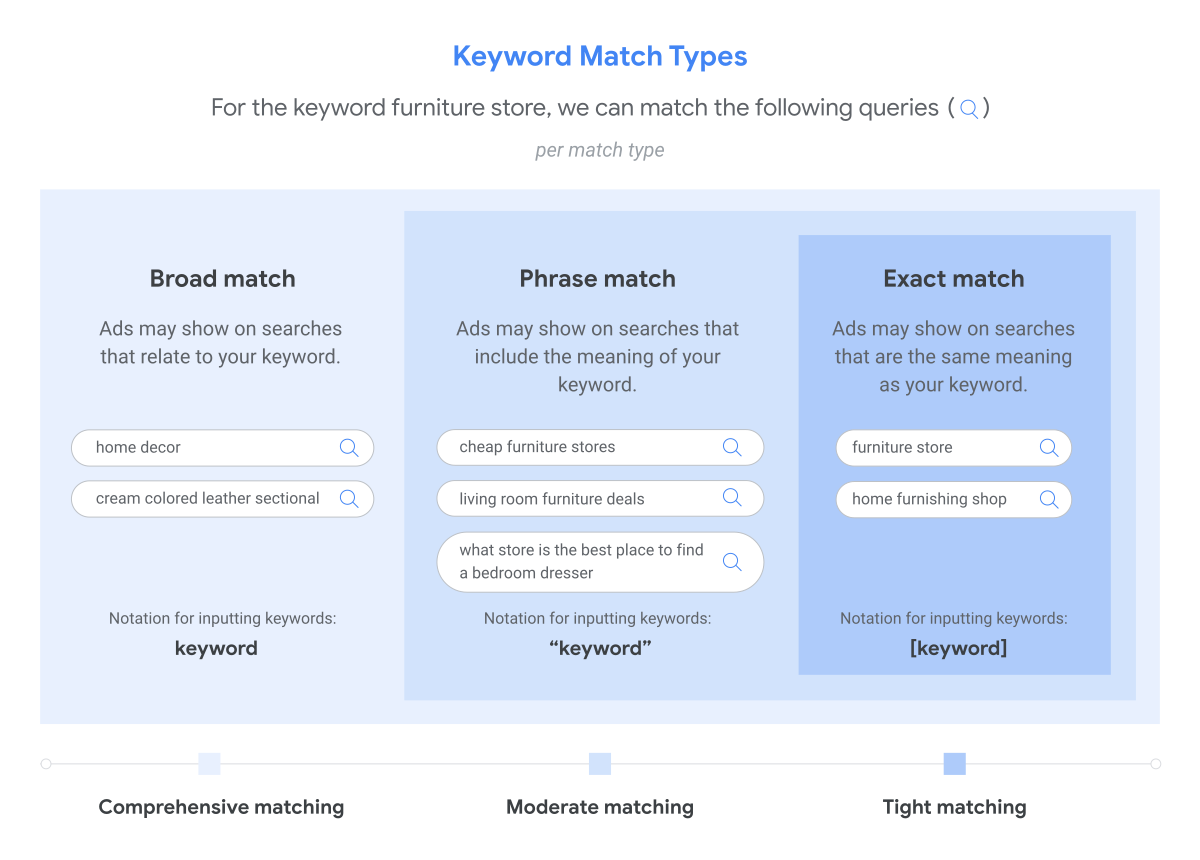
Google gives you three ways to match keywords:
- Broad Match: Your ad shows for related searches, variations, synonyms—pretty much anything Google thinks is relevant. This is the "spray and pray" approach. You'll get lots of clicks, but they might not all be relevant.
- Phrase Match: Your ad shows when someone's search includes your keyword phrase, with other words before or after it. More control than broad match.
- Exact Match: Your ad only shows for searches that closely match your exact keyword. Most control, least reach.
Most accounts do best with a mix of phrase and exact match, with broad match used carefully (or not at all if you have a limited budget).
Red Flags to Watch For
🚩 High spend, zero conversions. If a keyword has spent more than 2-3 times your target cost per conversion without delivering a single conversion, it needs to go. Kill it. Don't let sentimental attachment to a keyword drain your budget.
🚩 Irrelevant search terms. Look at your Search Terms report. Are people searching for things completely unrelated to your business? If you sell plumbing services and people are searching for "plumbing schools near me," that's wasted money.
🚩 Everything on broad match. Unless you have a huge budget and tons of conversion data, running everything on broad match is like throwing darts blindfolded. You'll hit something, but probably not the bullseye.
🚩 No negative keywords. Negative keywords tell Google when NOT to show your ads. If you don't have any negative keywords, you're definitely wasting money on irrelevant searches.
Action Items
Pause underperforming keywords. Be ruthless. If it's not working after reasonable testing, pause it and reallocate that budget to winners.
Add negative keywords. Go through your Search Terms report and add negative keywords for anything irrelevant. Some common ones:
- "free"
- "jobs"
- "salary"
- "DIY"
- "how to" (unless you're selling information)
- Competitor names (unless you want to target competitor traffic)
Section 3: Ad Copy & Extensions
Your keywords might be perfect, but if your ad copy is boring or unclear, nobody's clicking. And if they do click, they better find what they expected.
Click on "Ads & extensions" to review your ad copy.
What Good Ad Copy Looks Like
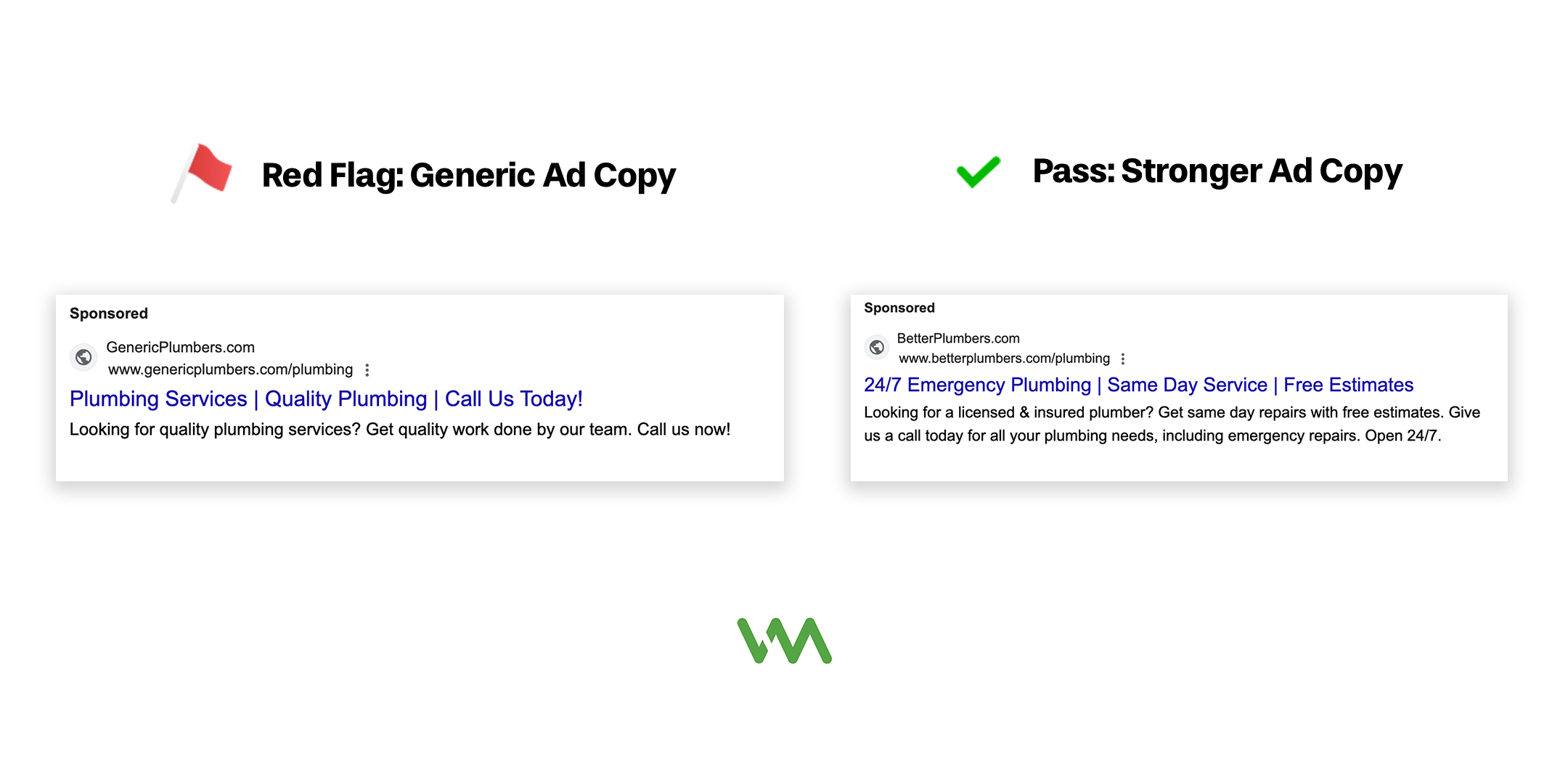
A strong Google ad includes:
- A clear headline that matches the search intent
- A benefit or unique selling proposition (why should they choose you?)
- A strong call-to-action (what you want them to do next)
- Trust signals like years in business, guarantees, reviews
Ad Extensions: Free Real Estate
Ad extensions are additional information that appears with your ad—phone numbers, extra links, location info, etc. They take up more space on the search results page, which means more visibility. And they're free.
You should be using:
- Sitelink extensions (links to specific pages on your site)
- Callout extensions (short phrases highlighting benefits: "Free Estimates," "Licensed & Insured")
- Call extensions (your phone number)
- Location extensions (if you have a physical location)
- Structured snippets (lists of services, brands, etc.)
Red Flags to Watch For
🚩 Generic, boring ad copy. "We're the best!" and "Quality service!" tell me nothing. Everyone says that. What makes you different?
🚩 No ad extensions. You're leaving free visibility on the table. Set these up immediately.
🚩 Only one ad per ad group. You should always be testing at least two ads against each other to see which performs better. No testing = no improvement.
🚩 Ad doesn't match the search. If someone searches "emergency plumber" and your ad talks about bathroom remodeling, that's a mismatch. Make sure your ad speaks directly to what people are searching for.
🚩 Broken or wrong URLs. Click your own ads. Make sure they go where they're supposed to go. I've seen too many ads sending people to 404 error pages.
Why This Matters
Your ad is your first impression. It's your 3-second pitch to get someone to choose you over your competitors. Make it count. And ad extensions? They're literally free ways to make your ad bigger and more prominent. Use them.
Section 4: Landing Page Experience
Someone clicked your ad. Great! They cost you money. Now what happens?
They land on a page on your website—your landing page. And this is where many campaigns fall apart.
The Landing Page Test
Here's the simplest way to audit your landing pages: Click your own ads and see where you land.
Ask yourself:
- Does this page match what the ad promised?
- Is it immediately clear what I should do next?
- Would I actually fill out this form or call this number?
- Does it load quickly on my phone?
Be honest. If you wouldn't convert on your own landing page, why would a stranger?
What Good Looks Like
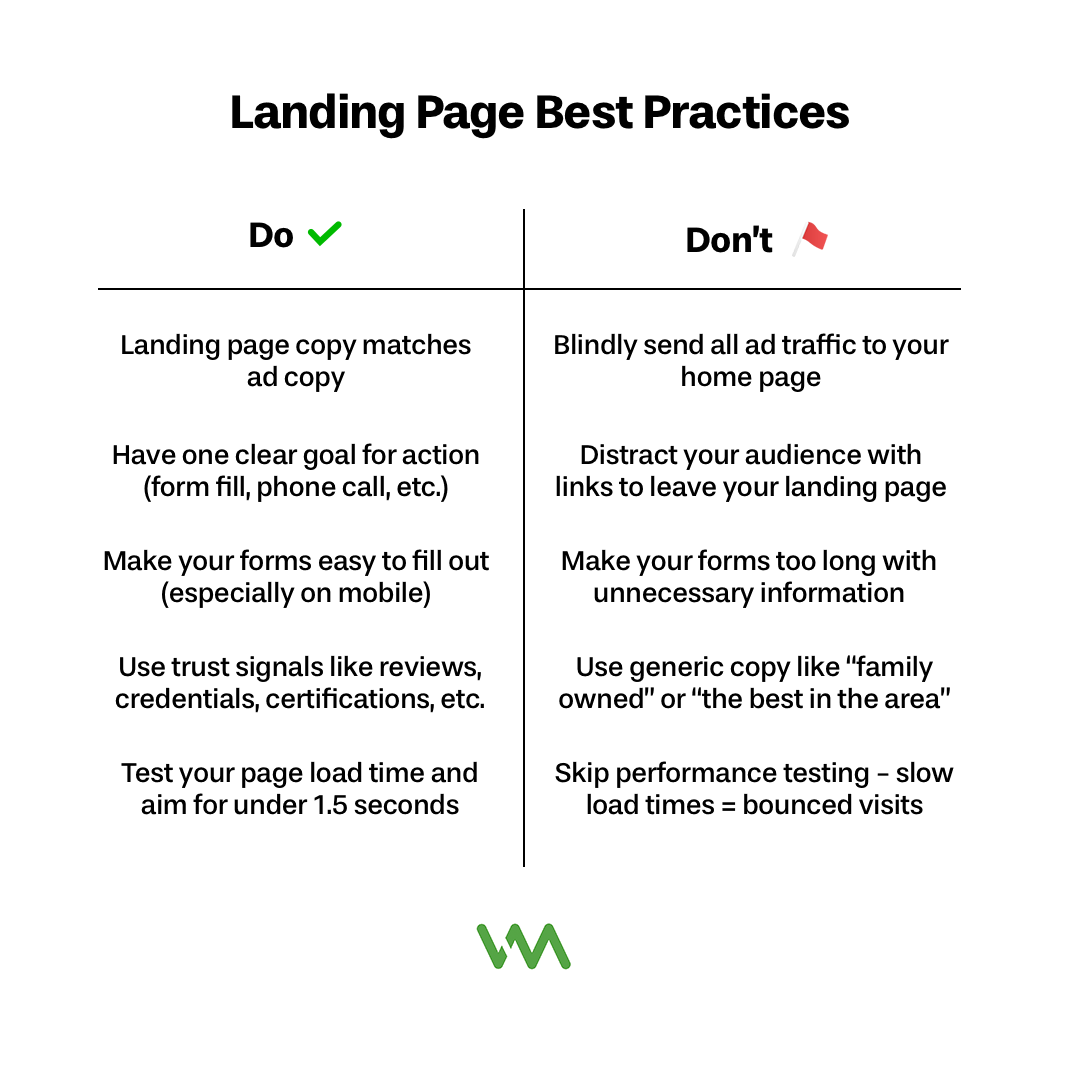
A strong landing page has:
- Message match: The headline on the landing page should closely match the ad that brought someone there. If the ad said "Emergency Plumber - 24/7," the landing page better be about emergency plumbing, not your company history.
- One clear goal: Don't give people too many options. If you want them to fill out a form, make the form prominent. Don't also give them three other ways to navigate away.
- Mobile-friendly design: Over half of all searches happen on mobile. Pull out your phone and test your landing page. Can you easily read it? Fill out the form? Click the buttons?
- Fast load speed: If your page takes more than 3 seconds to load, people will bounce. Test your speed at Google PageSpeed Insights (just Google that phrase—it's free).
- Trust signals: Include reviews, testimonials, years in business, credentials, licenses, insurance info—whatever makes you trustworthy in your industry.
Red Flags to Watch For
🚩 Sending everyone to your homepage. Your homepage is for browsing. Landing pages are for converting. If someone clicks an ad for "water heater installation" and lands on your homepage, they have to hunt for what they want. Many won't bother.
🚩 Forms that are too long. If you're asking for 15 pieces of information, you'll lose people. Ask for the minimum you need to follow up—usually name, email or phone, and maybe one or two qualifying questions.
🚩 Slow loading pages. Test this on your phone, not just your office computer. Slow pages kill conversions.
🚩 No clear next step. What do you want people to do? Call? Fill out a form? Request a quote? Make it obvious and easy.
🚩 Broken pages or forms. Test your form submissions. I've seen businesses waste thousands on ads that sent people to forms that didn't actually work.
The 5-Second Test
Show your landing page to someone who doesn't know your business. Give them 5 seconds to look at it, then take it away. Ask them:
- What does this company do?
- What are they supposed to do on this page?
If they can't answer both questions clearly, you need to simplify your landing page.
Section 5: Conversion Tracking
Here's a scary truth: many businesses run Google Ads without proper conversion tracking. They're spending money on clicks and hoping for the best.
That's like playing darts in the dark. You might hit something, but you have no idea what.
What to Look For
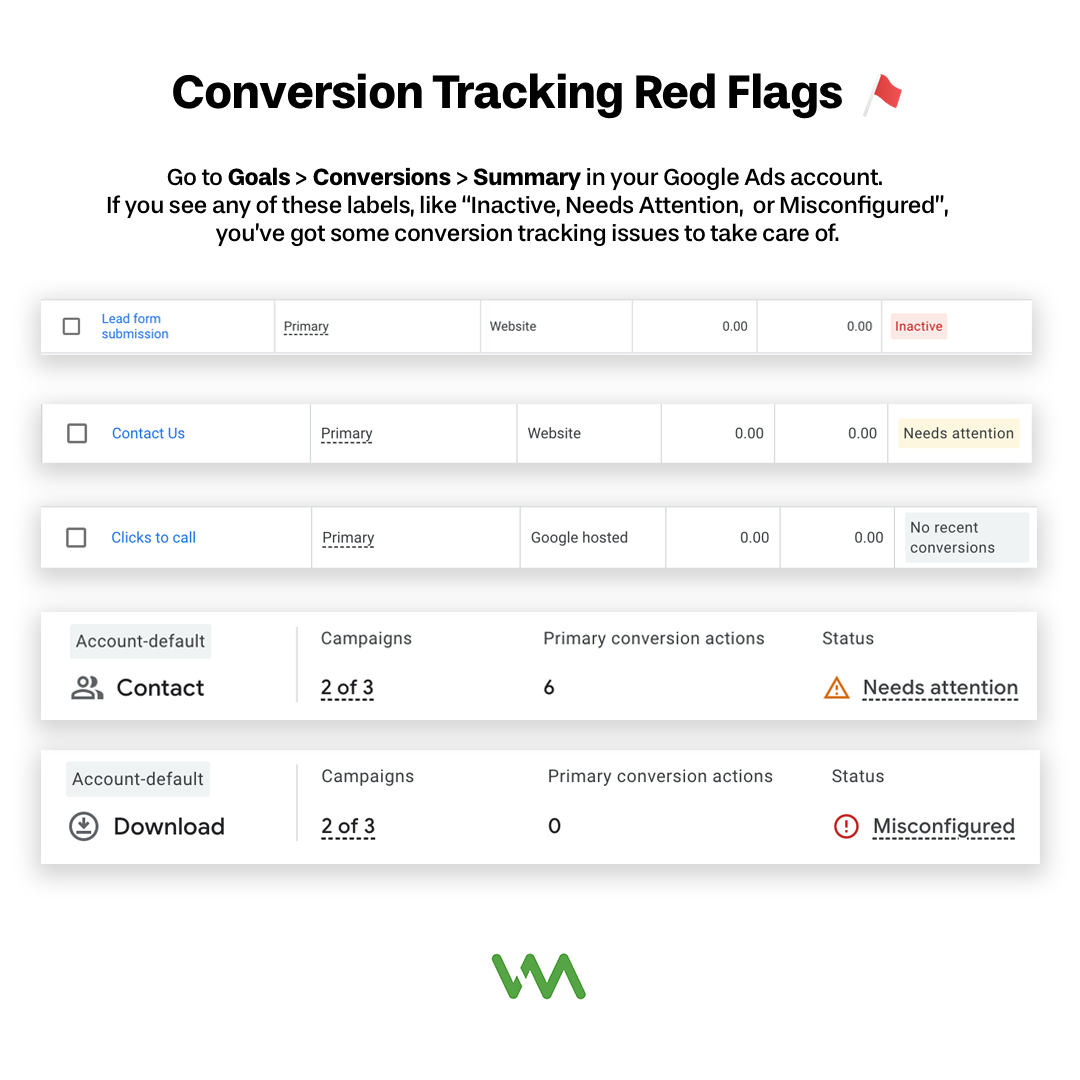
Click on "Conversions" in your Google Ads account, then look at the columns in your campaigns view. Do you see actual numbers in the "Conversions" column? Or do you see dashes, zeros, or "Not tracked"?
If you see zeros or dashes across all your campaigns, conversion tracking isn't set up. You're flying blind.
What Should You Be Tracking?
Track the actions that matter to your business:
- Form submissions (contact forms, quote requests, sign-ups)
- Phone calls (from people clicking your phone number)
- Purchases (for e-commerce)
- Chat conversations (if you use a chat widget)
- Button clicks (like "Get a Quote" or "Schedule Appointment")
Each business is different, but there should be something you're measuring as success.
Red Flags to Watch For
🚩 No conversion tracking at all. If you're not tracking conversions, you have no idea which keywords, ads, or campaigns are actually making you money.
🚩 Numbers that don't match reality. Google says you got 50 conversions this month, but you only got 10 actual leads? Something's broken. You might be tracking the wrong thing (like "visited contact page" instead of "submitted contact form").
🚩 Only tracking clicks. Clicks are not conversions. Clicks are just the first step. What matters is what happens after the click.
🚩 Tracking everything as equal. A phone call might be way more valuable than a newsletter signup. Make sure your conversion values reflect reality if you're using value-based bidding.
Why This Is Critical
Without conversion tracking, you're making decisions based on guesses and feelings. With conversion tracking, you're making decisions based on data. You can see exactly which keywords are profitable, which ads work best, and where to invest more budget.
If conversion tracking isn't set up properly, fixing this should be your #1 priority. Everything else depends on it.
Section 6: Budget & Bidding
Let's talk money. Specifically, how your money is being spent and whether you're getting a good return.
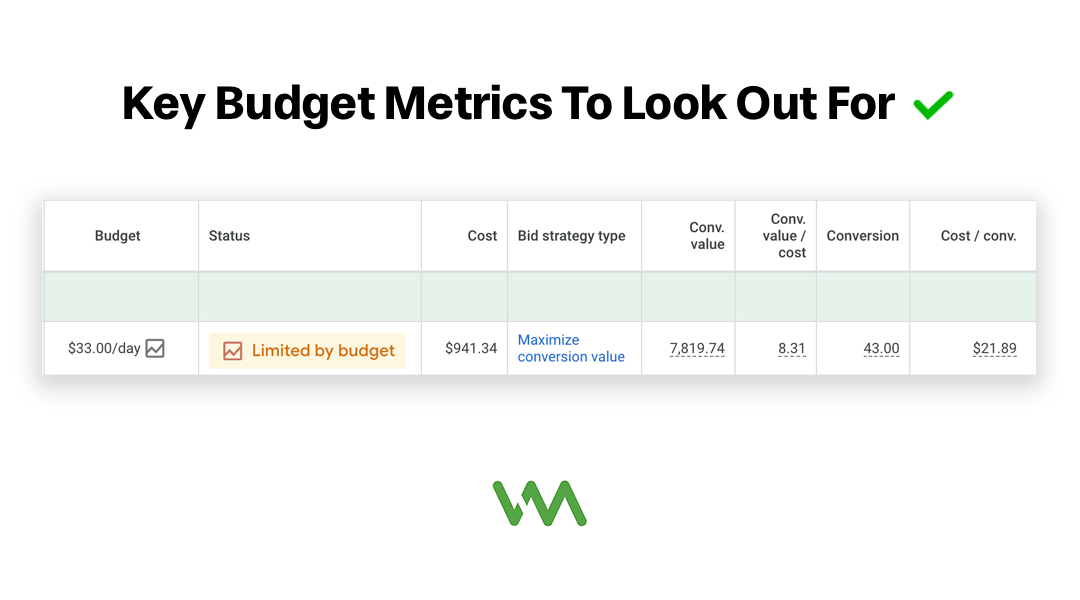
Click on "Campaigns" and look at the columns for Budget, Spend, Cost/Conv., and Conv. Value/Cost.
What to Look For
- Budget pacing: Look at the "Budget" column. Do you see any campaigns with "Limited by budget"? This means your campaign is running out of money before the day is over. You're missing out on potential clicks and conversions.
- Cost per conversion: This is the big one. How much are you spending to get each conversion? Compare this to your profit margin. If you make $1,000 profit on a customer and it costs you $200 to acquire them, that's great. If it costs you $1,200, you're losing money.
- Conversion Value/Cost: If you’re sending the value of each closed deal back into Google Ads, you can close the reporting loop to determine how much revenue you’re driving for every dollar spent in advertising. This is something most marketers miss - mostly because businesses don’t have the proper closed-loop tracking set up.
- Bidding strategy: Click into each campaign and look at "Bidding." Are you using manual bidding or automated bidding? There's no "right" answer here—it depends on your goals, budget, and how much conversion data you have.
Manual vs. Automated Bidding (Simplified)
- Manual bidding: You set the maximum you're willing to pay per click. You have full control but it requires more monitoring and adjustment.
- Automated bidding: Google's system automatically adjusts your bids to get you the most conversions (or conversion value) within your budget. This works well if you have enough conversion data—Google generally needs at least 30 conversions in 30 days to optimize effectively.
Red Flags to Watch For
🚩 Campaigns exhausted by noon. If you're "Limited by budget" and your budget runs out before the end of the day, you're missing potential customers. Either increase your budget or improve your targeting to make your budget last all day.
🚩 Cost per conversion higher than your profit margin. Math is simple here: if you spend more to acquire a customer than you make from them, you can't sustain that. Either lower your costs or increase your prices.
🚩 Using automated bidding without enough data. If you're using strategies like "Target CPA" or "Maximize Conversions" but you only have 3 conversions per month, Google doesn't have enough data to optimize effectively. Stick with manual bidding or Maximize Clicks until you have more data.
🚩 Wasting spend on low-performing campaigns. Look at your campaigns sorted by spend. Are you putting money into campaigns that deliver little to no results? Reallocate that budget to campaigns that are working.
The Profitability Check
Here's a simple exercise to see if your Google Ads are actually profitable:
- Calculate your average profit per customer
- Look at your cost per conversion in Google Ads
- Subtract cost per conversion from profit per customer
- What's left is your profit after ad spend
If that number is positive and you're happy with it, great. If it's negative or too small to be worth your time, something needs to change.
Section 7: Geographic & Scheduling Settings
You might be showing ads to people who can't even use your services. Or running ads when nobody can answer the phone. Let's fix that.
Geographic Targeting
Click into each campaign, then go to "Locations" in the left menu.
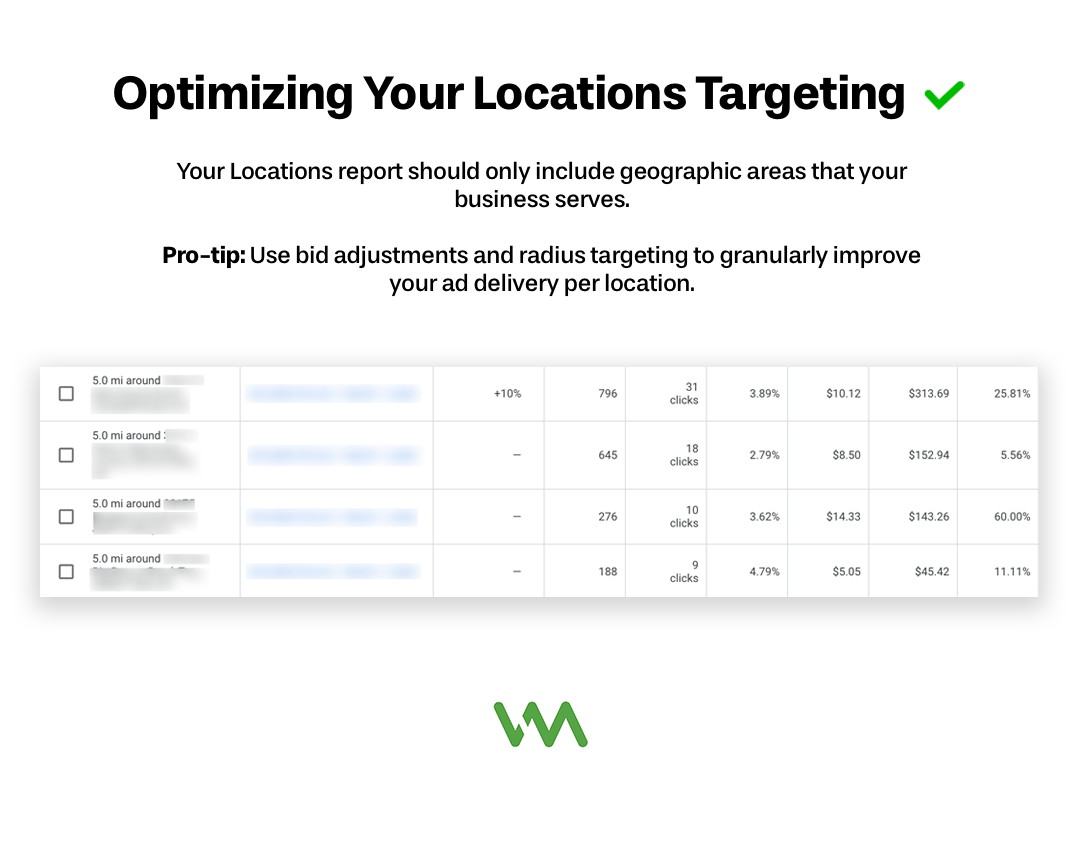
What to look for: Are you targeting the right geographic area? If you're a local business that only serves Detroit, you shouldn't be getting clicks from California.
Click on "Locations" to see a report of where your traffic is actually coming from. Sometimes you think you're targeting Detroit, but you're actually showing ads to people who are just searching for "Detroit plumbers" while sitting in Florida.
Red Flags
🚩 Targeting too broad. If you only serve local customers but you're targeting the entire state or country, you're wasting money.
🚩 Getting clicks from places you don't serve. Look at the location report. If you see traffic from locations you don't service, exclude them.
🚩 Wrong location targeting setting. Google has two location targeting options: "Presence or interest" (people in or searching for your location) and "Presence only" (only people physically in your location). For most local businesses, "Presence only" is better to avoid wasted clicks from people just researching your area.
Ad Scheduling
Click into each campaign, then go to "Ad schedule" in the left menu.
What to look for: When are your ads running? Are they running 24/7, or only during business hours?
If you're a service business that only answers the phone 9am-5pm, running ads at 2am is wasting money. People will click, get frustrated they can't reach you, and move on to a competitor.
Red Flags
🚩 Running 24/7 when you can't respond. If someone searches for a plumber at midnight and clicks your ad, can they reach you? If not, why are you advertising then?
🚩 Not advertising during peak times. Look at your data—when do most of your conversions happen? Make sure you're not missing those hours due to budget constraints.
The Quick Fix
For most local service businesses: Target only the specific cities or zip codes you serve, and only run ads during hours when someone can actually respond to inquiries. This simple change often cuts wasted spend by 20-30%.
Section 8: Quality Score & Account Health
Quality Score is basically Google's report card for your ads. It tells you how relevant and useful Google thinks your ads are.
How to Check Quality Score
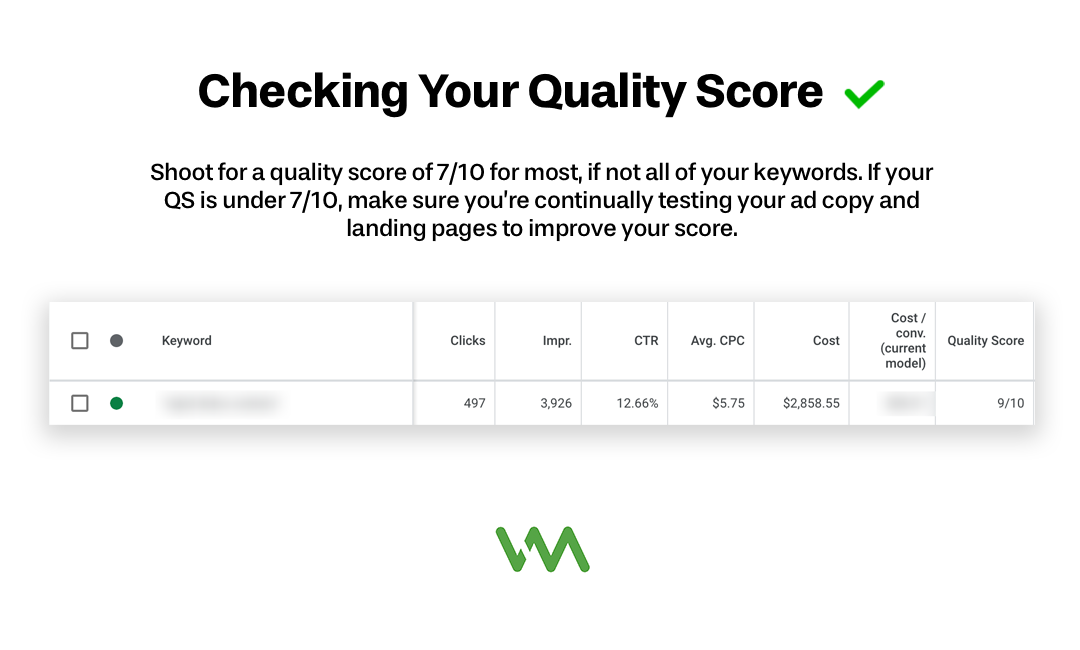
Go to "Keywords" and click the columns icon. Under "Quality Score," check all the boxes, then click Apply. You'll now see Quality Score and its components.
Quality Score is rated 1-10, with 10 being best. It's based on three things:
- Expected click-through rate
- Ad relevance
- Landing page experience
What Good Looks Like
A Quality Score of 7 or higher is good. It means Google thinks your ads are relevant and useful. This usually leads to:
- Lower costs per click
- Better ad positions
- More efficient spending
Quality Scores of 5-6 are average. Below 5 means something needs improvement.
Why This Matters
Higher Quality Scores = lower costs. Two advertisers bidding the same amount for the same keyword will pay different prices based on Quality Score. The advertiser with better Quality Score pays less per click.
It's Google's way of rewarding relevant, useful ads and punishing spammy or irrelevant ones.
Red Flags
🚩 Consistently low Quality Scores (below 5). This means Google thinks your ads aren't relevant to the searches triggering them. Your costs are higher than they need to be.
🚩 Disapproved ads. Click on "Ads & extensions" and filter by "Disapproved." These ads aren't showing at all. Fix the policy violations.
🚩 Account warnings. Look for any notifications or warnings in your account. Policy violations, payment issues, or disapproved ads need immediate attention.
Account Recommendations
Google shows recommendations in your account—suggestions for improvement. Click on "Recommendations" in the left menu.
Take these with a grain of salt. Some recommendations are genuinely helpful (like adding call extensions). Others are designed to make you spend more money (like "increase your budget").
Evaluate each recommendation based on your actual business goals, not just Google's suggestions.
Section 9: Competitive Analysis
You're not advertising in a vacuum. Your competitors are fighting for the same customers. Let's see how you stack up.
Auction Insights
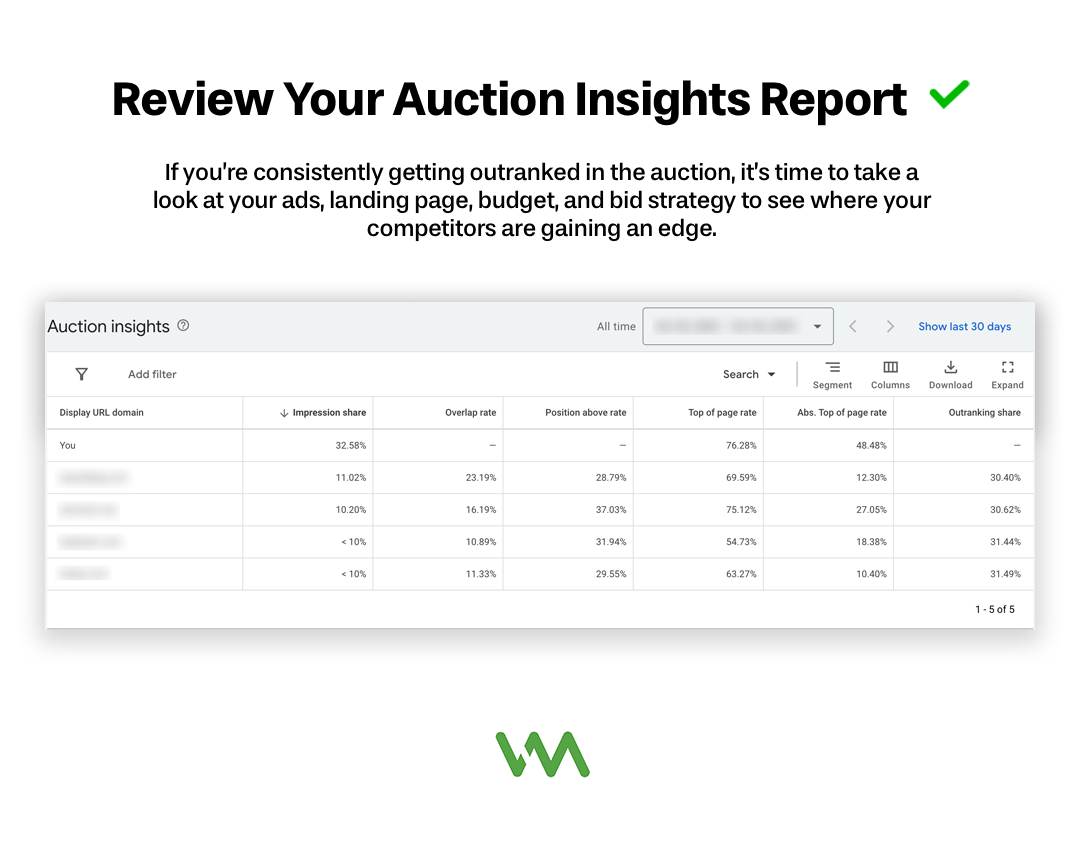
Go to "Campaigns," select a campaign, and click "Auction insights" at the top of the page.
This shows you:
- Who else is advertising for the same searches
- How often they appear compared to you
- Who's ranking above you
What to look for: Are you consistently being outranked by competitors? Are there competitors showing up that you didn't know about?
The Manual Search Test
This is simple but powerful: Google your own keywords.
Type in the main search terms your customers would use. See what ads appear. Pay attention to:
- Who's advertising?
- What are they saying in their ads?
- What offers or promises are they making?
- What makes their ads compelling (or not)?
Do this from an incognito browser so you get clean results without your search history influencing them.
Red Flags
🚩 Your ad never appears. If you search your main keywords and don't see your ad, that's a problem. Either your bids are too low, your Quality Score is terrible, or something's broken.
🚩 Competitors have much better ad copy. If their ads are compelling and yours are boring, you're losing clicks.
🚩 You're always in the bottom position. Being consistently in position 3-4 (or lower) means you're getting less traffic than you could be.
What to Do With This Info
You're not copying your competitors, but you can learn from them. If every competitor is offering "Free estimates" and you're not mentioning it, maybe you should. If they're all using phone call extensions and you're not, that's an easy win.
Section 10: Reporting & Communication (For Those Working with Agencies)
If you hired someone to manage your Google Ads, they should be keeping you informed. Here's what good agency management looks like.
What You Should Expect
Regular reporting: At minimum, you should get a monthly report. Better agencies provide it mid-month too so you're never in the dark.
Clear explanations: The report shouldn't just be a dump of screenshots and numbers. It should explain:
- What happened this month
- Why it happened
- What they're doing about it
- What to expect next month
Proactive recommendations: Good agencies don't just maintain your account—they actively look for ways to improve it. You should hear ideas like "I noticed X, so I recommend we try Y."
Transparency: You should have full access to your account. They should be willing to show you anything and explain anything. No secrets.
Responsiveness: Questions should be answered within 24-48 hours. If you feel like you're being ghosted, that's a red flag.
Red Flags (Agency Edition)
🚩 No regular communication. If you're going weeks or months without hearing from them unless you reach out, they're not managing your account proactively.
🚩 Reports with no context. A PDF with 20 screenshots and no explanations tells you nothing. What does it mean? What should you do with this information?
🚩 Vague answers to specific questions. When you ask "Why did conversions drop 30%?" you should get a real answer, not "Google algorithms are unpredictable."
🚩 Reluctance to share account access. This is a huge red flag. It's your account, your data, your business. Full stop.
🚩 No changes or testing. If you look at your account change history and see nothing happening for weeks at a time, you're paying for someone to do nothing.
How to Check Change History
Go to "Tools & settings" → "Change history." This shows you every change made to your account and who made it. If your agency says they're "actively managing" your account but you see no changes in weeks, something's wrong.
Questions to Ask Your Agency
- What did you change in my account this month and why?
- What are the top 3 things holding back my campaigns right now?
- What's your plan to improve results over the next 60 days?
- Can you walk me through the Search Terms report and explain what you're seeing?
Good agencies will answer these eagerly. Bad agencies will deflect or get defensive.
Your Audit Action Plan
You've just gone through a lot. Your head might be spinning. That's normal.
Here's how to turn this audit into action:
Step 1: Categorize Your Findings
As you went through this audit, you probably found some issues. Organize them into three buckets:
Critical (Fix Immediately):
- No conversion tracking
- Wasting large amounts of budget on irrelevant traffic
- Broken landing pages or forms
- No account access (if working with an agency)
- Policy violations or disapproved ads
Important (Fix This Month):
- Poor Quality Scores
- Missing ad extensions
- Budget limitations during peak hours
- Geographic or schedule targeting issues
- Underperforming keywords eating budget
Nice to Have (When You Have Time):
- Testing new ad copy
- Expanding to new keywords
- Competitive analysis
- Landing page A/B testing
Step 2: Quick Wins
Start here—these take less than an hour but can have immediate impact:
✅ Add negative keywords from your Search Terms report
✅ Set up all available ad extensions
✅ Pause obviously underperforming keywords
✅ Fix any broken URLs or landing pages
✅ Adjust geographic or schedule targeting
✅ Increase budgets on campaigns that are limited but performing well
Step 3: Bigger Projects
These take more time or might require help:
📋 Set up proper conversion tracking (if not already done) 📋 Rewrite weak ad copy 📋 Improve landing pages 📋 Restructure poorly organized campaigns 📋 Implement a testing schedule for ongoing optimization
Step 4: Ongoing Management
Google Ads isn't set-it-and-forget-it. Schedule these regular check-ins:
- Weekly (15 minutes): Quick look at spend, conversions, and any major changes
- Monthly (1 hour): Review performance, add negative keywords, pause underperformers, check Search Terms report
- Quarterly (2-3 hours): Deep dive audit (like you just did), test new strategies, review goals
When to DIY vs. When to Get Help
You can probably DIY if:
- You have a simple account (1-3 campaigns)
- You're spending less than $2,000/month
- You have time to learn and manage it (5-10 hours/month minimum)
- Your business is straightforward with clear conversions
Consider getting help if:
- You're spending $2,000+/month and don't have time to manage it
- Your account has 5+ campaigns across multiple goals
- You're not seeing results and don't know why
- You'd rather focus on running your business
If working with an agency, this audit helps you:
- Know what questions to ask
- Spot if they're actually doing their job
- Have informed conversations about strategy
- Make better decisions about whether to stay or switch
Final Thoughts: You're in Control
Here's what I want you to remember: Google Ads isn't magic, and it isn't rocket science. It's a system. When the system is set up correctly and managed consistently, it works. When it's not, it wastes money.
You just learned how to tell the difference.
Even if you're not a "tech person," you now know what good looks like. You can open your account with confidence instead of confusion. You can ask your agency tough questions and know whether their answers make sense. You can spot the red flags before they cost you thousands of dollars.
Most business owners never do this. They just keep paying the bill and hoping for the best. You're not most business owners.
Is your Google Ads campaign actually working? Now you know how to find out. And more importantly, you know what to do about it if it's not.
Take that first step. Open your account. Start with one section of this audit. You've got this.
Key Terms Glossary
- Campaign: The top level of organization in Google Ads. Contains ad groups with related keywords and ads.
- Click-Through Rate (CTR): Percentage of people who click your ad after seeing it. Calculated as (Clicks ÷ Impressions) × 100.
- Conversion: A valuable action someone takes after clicking your ad—like filling out a form, making a purchase, or calling your business.
- Cost Per Click (CPC): The average amount you pay each time someone clicks your ad.
- Cost Per Conversion: How much you spend in ad costs to get each conversion. Calculated as total spend ÷ conversions.
- Impression: Each time your ad is shown to someone, regardless of whether they click.
- Keyword: The word or phrase you bid on that triggers your ad to show when someone searches for it.
- Landing Page: The web page people arrive at after clicking your ad.
- Match Type: How closely a person's search must match your keyword for your ad to show. Options: Broad, Phrase, or Exact.
- Negative Keyword: A word or phrase that prevents your ad from showing. Use these to filter out irrelevant searches.
- Quality Score: Google's 1-10 rating of how relevant and useful your ads are. Higher scores = lower costs and better positions.
- Search Terms: The actual words and phrases people typed into Google that triggered your ads. Often different from your keywords.
