


The silent killer
You're spending $3,000/month on Google Ads. The dashboard shows 47 conversions last month. Your sales team closed 12 deals.
Something doesn't add up.
This is the most common problem we see when taking over Google Ads accounts—and it's almost always a tracking issue, not a campaign issue. The worst part? You could be making decisions based on completely wrong data. Pausing campaigns that actually work. Increasing budgets on campaigns that are wasting money. All because your conversion tracking is lying to you.
The good news: you can audit your tracking setup in about 30 minutes. You don't need to be a developer. You just need to know where to look.
What you're actually checking for
Before we dive in, let's get clear on what we're looking for. Most conversion tracking problems fall into three categories:
Problem #1: The tracking code isn't firing at all
Your pixel or tag isn't installed correctly, so Google Ads has no idea when someone converts. We’ve seen a surprising number of people running Google Ads (mostly Smart Campaign users). We get it - people get excited about launching their first ad and don’t think about the measurement protocols behind it.
Problem #2: The tracking code is firing too many times
You're counting the same conversion multiple times, inflating your numbers. A multitude of things can cause this, but often we see duplicate tagging or incorrect tag configurations as the number one cause of this.
Problem #3: The tracking code is firing on the wrong things
You're tracking form page views instead of form submissions, or counting every page load as a conversion. This is common if you’ve got your conversion tracking tied to a Thank You/Confirmation page visit instead of a validated form submission or ecommerce transaction.
All three scenarios lead to bad data. Let's figure out which one you have.
Step 1: Check what conversions you're actually tracking (5 minutes)
Log into your Google Ads account and navigate to Goals > Conversions in the left sidebar.
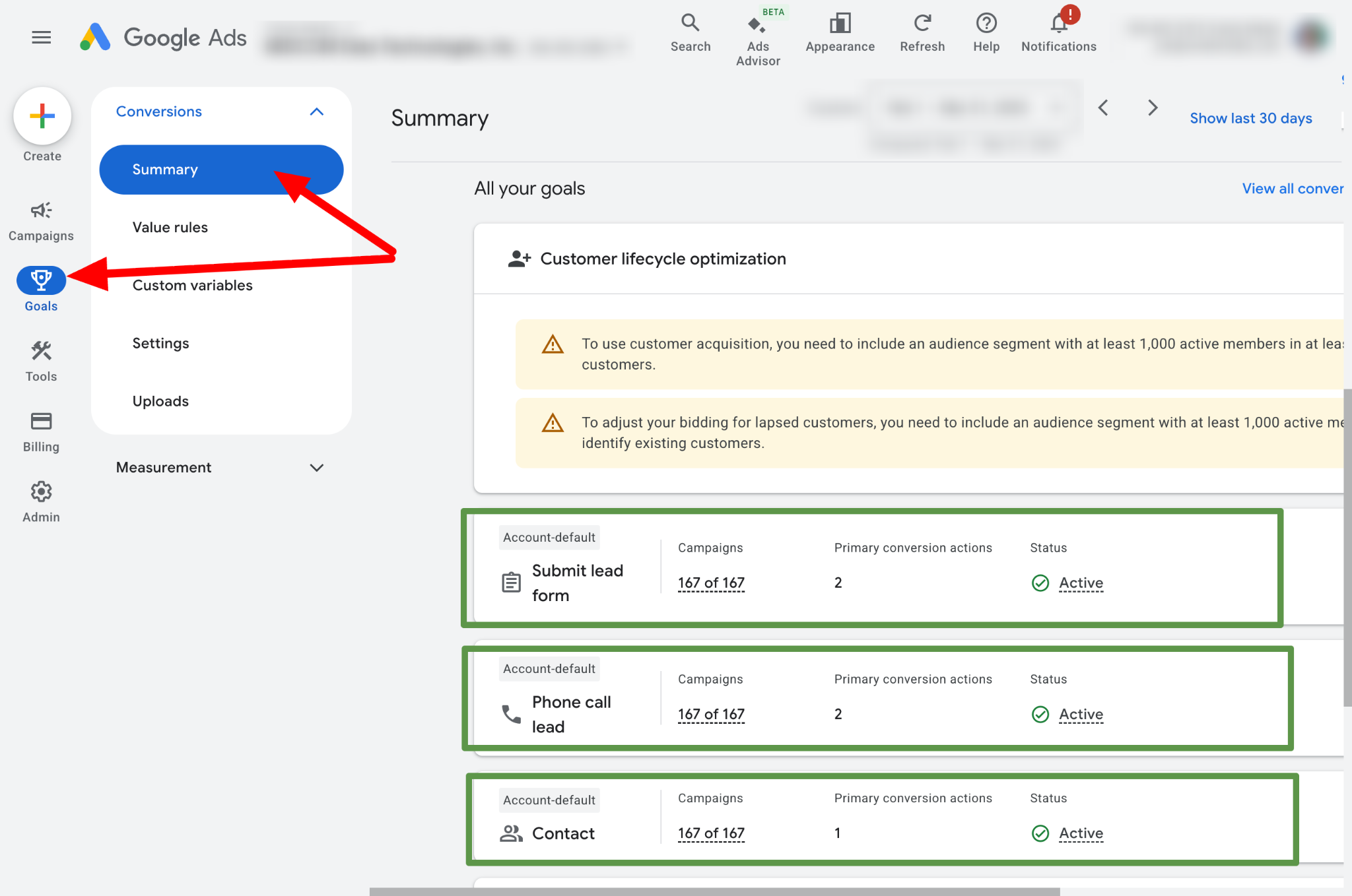
You should see a list of all your conversion actions. For each one, pay attention to:
The conversion name - Does it make sense? "Purchase" is clear. "Conversion" is vague. "Contact" could mean anything.
The source - Where is this conversion coming from? Common sources include your website, Google Analytics, phone calls, or app imports.
The count - Look at the "All conv." column. If you see huge numbers (like 500+ conversions on a $2,000/month budget), that's your first red flag.
Here's what to look for:
If you're a lead generation business (service provider, B2B, etc.), you should typically have 1-3 conversion actions:
- Form submissions
- Phone calls
- Maybe live chat conversations
If you're ecommerce, you should see:
- Purchases (this is the main one)
- Maybe "Add to Cart" or "Begin Checkout" for reporting only
Red flags to look out for:
🚩Red flag #1: You have 8+ conversion actions listed. More conversions doesn't mean better tracking—it usually means messy tracking.
🚩Red flag #2: You see conversions with names like "Page view" or "Session start." These shouldn't be conversion actions.
🚩Red flag #3: Your conversion count is 5-10x higher than the number of actual leads or sales you received.
Step 2: Verify your primary conversion is set correctly (3 minutes)
Click into your main conversion action (the one that actually matters to your business—form submissions for lead gen, purchases for ecommerce).
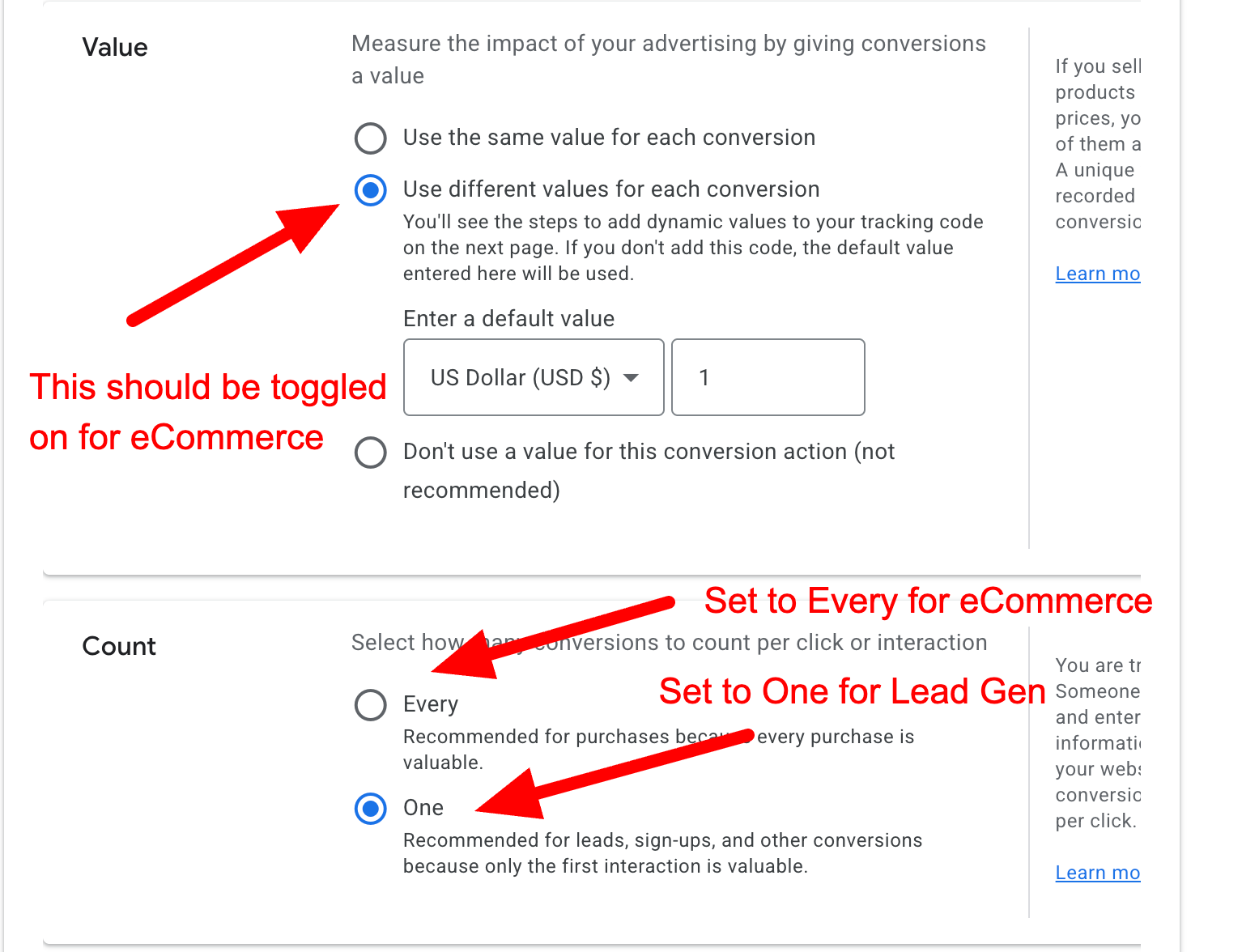
Check these settings:
Value - If you're ecommerce, this should say "Use different values for each conversion." If you're lead gen, you can use a fixed value or no value at all.
Count - This is critical. For lead gen, this should be set to "One." For ecommerce, it should be "Every."
Here's why: If someone submits your contact form, you want to count that once, not every time they reload the thank-you page. But if someone buys three different products in three different orders, you want to count all three purchases.
Primary action for bidding strategies - Make sure your main conversion has "Primary" selected. Google's automated bidding strategies prioritize primary conversions. If you accidentally marked "Begin Checkout" as primary instead of "Purchase," Google is optimizing for the wrong thing.
Step 3: Test if your conversion is actually firing (10 minutes)
This is where most people stop—but it's the most important step. We're going to actually test whether your conversion tracking works.
Open your website in a private/incognito browser window. This prevents cached data from interfering with the test.
Now, go through your conversion process:
- If you track form submissions, fill out and submit your contact form
- If you track purchases, place a test order (don't worry, we'll check if it counted before you complete the payment)
- If you track phone calls, click your phone number
After you complete the action, go back to Google Ads and click on Goals > Conversions again. Look for a "Recent conversions" option or check the conversion count for today.
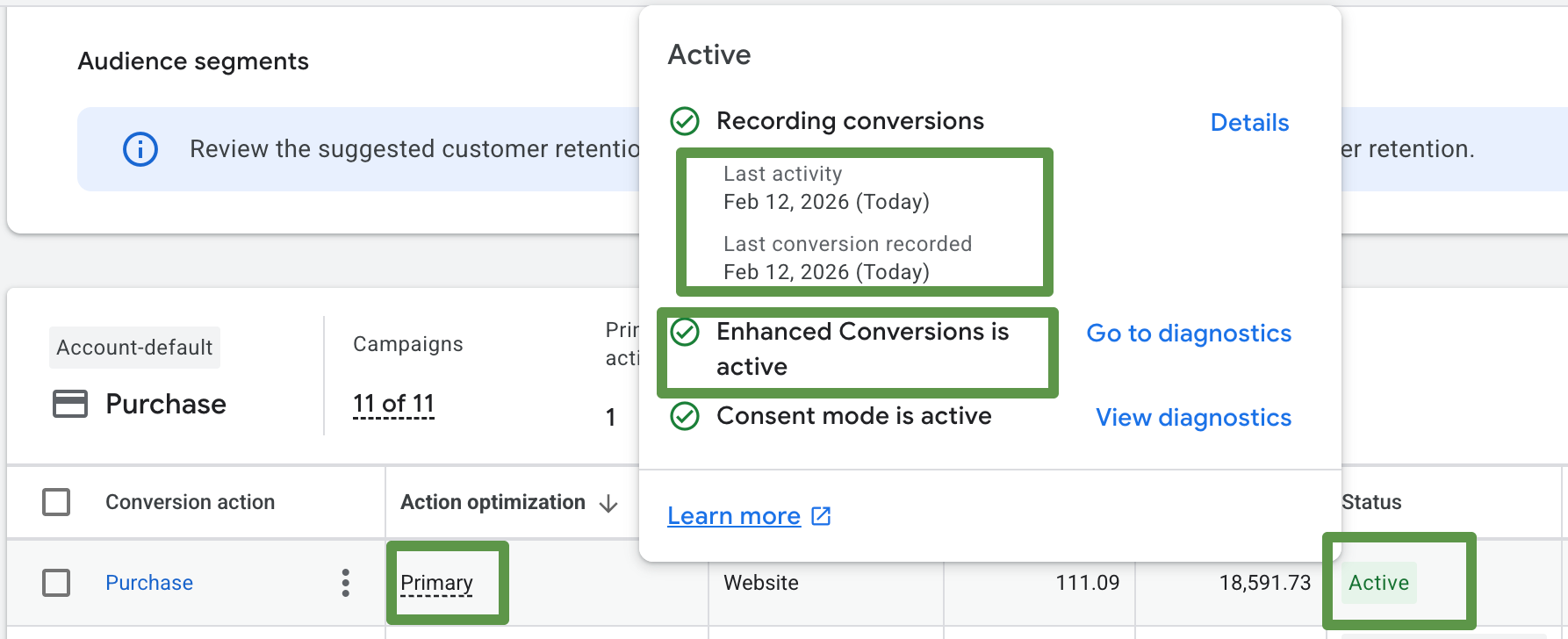
- If your test conversion shows up within 5-10 minutes: Great! Your tracking is working.
- If nothing shows up after 15 minutes: Your tracking isn't working. Jump to Step 5 below to troubleshoot.
- If you see 2-3 conversions from your single test: Your tracking is firing multiple times. This is inflating your conversion count. You'll need to fix your tag implementation (we'll cover this in a future article, but for now, you know the problem exists).
Step 4: Cross-reference with reality (5 minutes)
Now compare your Google Ads conversion data to what actually happened in your business.
Pull up:
- Your CRM or lead management system
- Your ecommerce platform's orders page
- Your inbox (if you get email notifications for form submissions)
- Your call log (if you track phone calls)
Pick a recent week and count:
- How many actual leads came in?
- How many actual sales happened?
- How many phone calls did you receive?
Now compare that to what Google Ads reports for the same period. According to Google's official conversion tracking documentation, there will always be some discrepancy between platforms due to attribution differences—but those differences should be minor.
They should be close - Within 10-20% is normal due to tech limitations, cookie blockers, and attribution nuances.
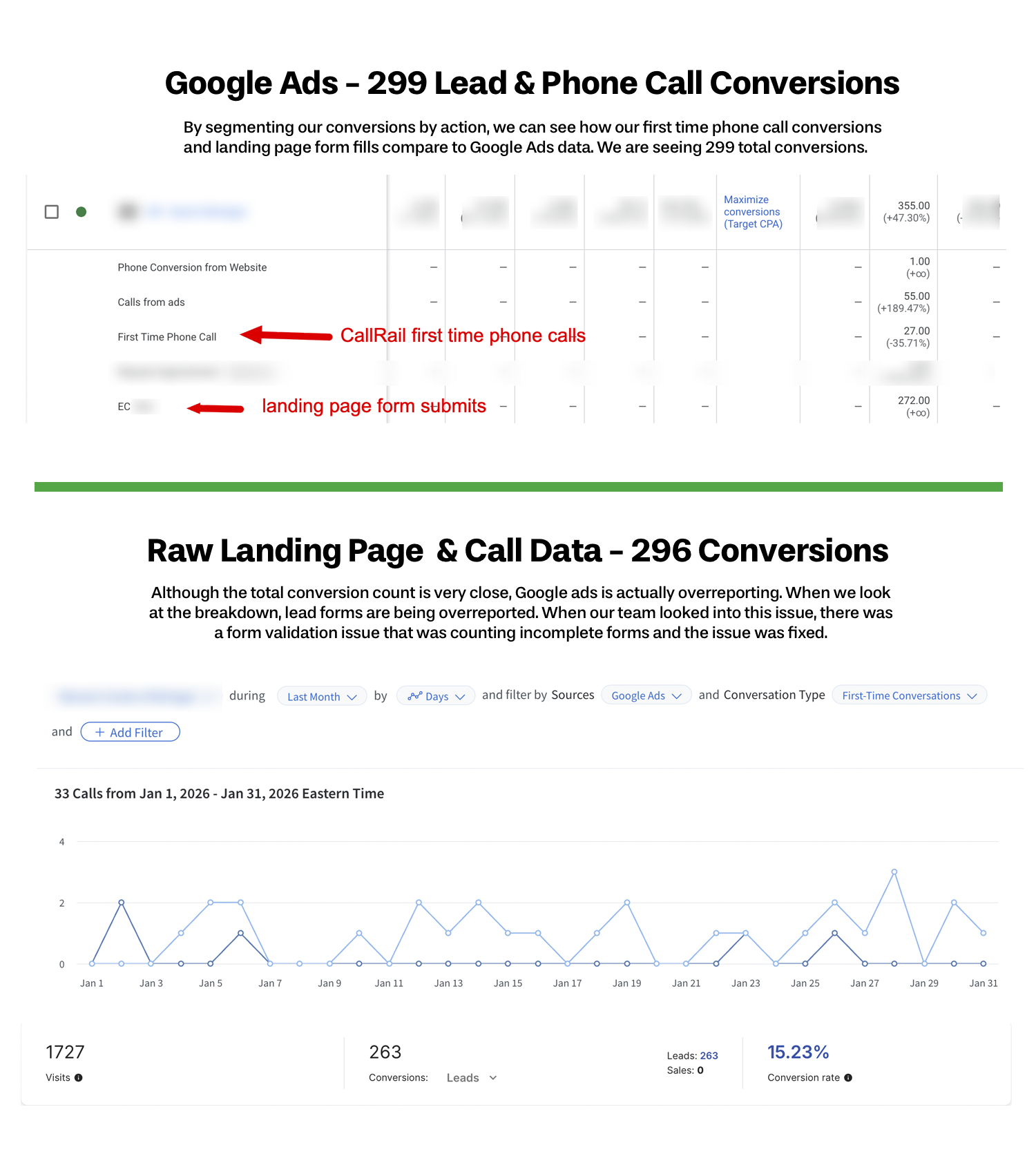
If Google Ads shows way more conversions than reality: You're double-counting or tracking the wrong things.
If Google Ads shows way fewer conversions than reality: Your tracking is either not set up at all, or people are converting through paths that aren't being tracked (like calling you directly after seeing your ad, instead of clicking through to the website).
Below is a live case study of a recent measurement audit that we did in a Google Ads lead generation account:
Step 5: Quick fixes for common problems
If you found issues during your audit, here are the most common fixes:
Problem: Conversions aren't firing at all
Your Google Ads tag probably isn't installed on your website, or it's on the wrong page. You'll need to either:
- Install Google Tag Manager and add your conversion tracking through there
- Add the Google Ads conversion pixel directly to your thank-you or confirmation page
- Work with your website developer to implement the tracking
Problem: Duplicate conversions
This usually happens when the conversion code fires on every page load of your thank-you page. Solutions:
- Make sure your conversion code only fires once per session
- Set your conversion count setting to "One" (see Step 2)
- Use event-based tracking instead of page-load tracking
Problem: Tracking the wrong action
If you're tracking contact form page views instead of form submissions, or product page views instead of purchases, you need to update what triggers your conversion tag. This typically requires updating your Google Tag Manager setup or working with your developer.
What this audit doesn't catch
Let's be honest: this 30-minute audit catches the obvious problems, but it won't catch everything. Here's what you might still be missing:
- Server-side tracking issues - If you're using server-side conversion tracking (and you should be), this audit won't tell you if it's working correctly.
- Attribution problems - Even if your tracking fires, Google might be attributing conversions to the wrong campaigns or keywords.
- iOS tracking limitations - With privacy changes from Apple, some conversions from iPhone users might not be tracked at all.
- Form spam - You might be getting 50 "conversions" but 30 of them are bots or spam submissions.
- Revenue tracking gaps - You might be tracking leads, but not which leads turned into actual customers. This is where closed loop lead tracking becomes essential for understanding true campaign performance.
These are more advanced issues that require deeper audits—topics we'll cover in future articles. For now, at least you know whether your basic tracking infrastructure is working.
The real question: Can you trust your data?
After running this audit, you should have a clear answer to whether your conversion data is trustworthy. If you found major discrepancies, don't panic. Almost every account we take over has tracking issues.
The key is knowing about them so you can make decisions accordingly. If your tracking is broken, you can't rely on metrics like "cost per conversion" or "conversion rate" to guide your strategy. Instead, focus on trends (is performance going up or down over time?) and compare your ad spend directly to revenue growth.
Once you fix your tracking, you'll finally be able to make confident decisions about where to invest your budget—instead of flying blind and hoping for the best. If you're not sure where to start or need help implementing the fixes, schedule a free consultation with our team—we audit conversion tracking setups every week and can usually spot the issue within minutes.
